

four ways to use Scrivener for all your writing projects
4 practical ideas for everything from articles and nonfiction manuscripts to a poetry collection, plus a bonus strategy for reducing writing anxiety

Hello there! Welcome to Write More, Be Less Careful, a newsletter about making space for creative practice in a busy life. My new book, The Good Mother Myth, is out now!
Today’s post is in the tending section, which is a mix of essays and interviews about creative practice that do a deeper dive into a particular craft element or process question. This is a long one—it’s full of good, practical tips about using Scrivener and images from my own projects to illustrate them!—so if it gets cut off in your email, just click the headline to read it in your browser.

Let’s talk about Scrivener. I had friends in grad school who used it for their dissertations and swore by it for organizing research and handling revisions. They admitted it had a steep learning curve and had attended multi-hour workshops to get them started, but they promised it was worth it.
I agree that Scrivener can be an incredible tool—and I also think that focusing on trying to learn everything it can do makes it too hard to get started. I’ve used Scrivener a ton in the last couple of years, for everything from organizing a poetry manuscript to starting a big nonfiction project to writing short articles. I think the best way to get started with Scrivener is just to pick one thing you want to do with it and dive in. So today I’m sharing four different ways you can use it, no intensive studying required! (Plus a bonus tip for how Scrivener can help reduce writing anxiety, if that resonates with you!)
Three notes: 1) If you’ve never used Scrivener, you might want to have the tutorials on hand to navigate the different parts of the platform. But don’t get bogged down! The whole idea here is that you can just get started and learn more as you go. 2) You can download Scrivener and try it out for free, and there’s an educational discount if you happen to have a .edu email address, and 3) If you want a more organized introduction to using Scrivener,
runs a really great workshop. You can go to her website and sign up to be notified the next time she’s running it.1. get started with a new project
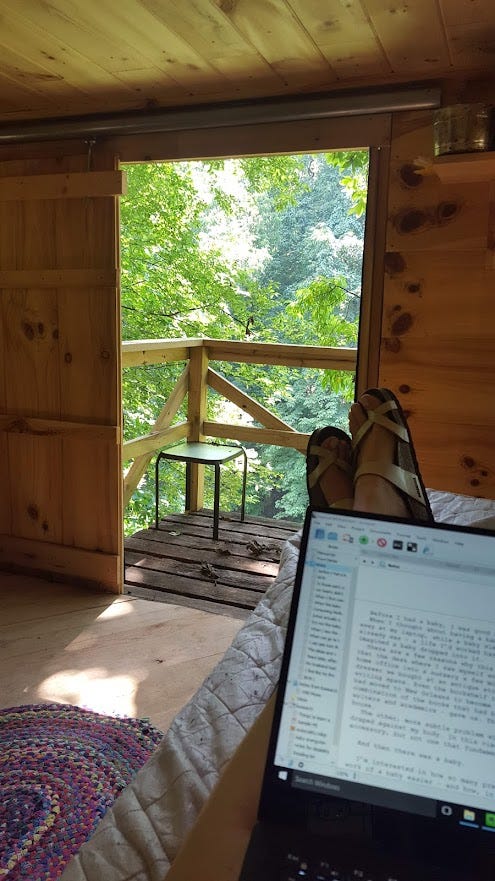
When I started writing The Good Mother Myth, I really had no idea what I was doing. I’d written two poetry collections and a dissertation by then, but I knew almost nothing about the business or the craft side of narrative nonfiction. But I had a writing residency that summer—one week in a little farm house outside Knoxville—and I got to work. I downloaded Scrivener to my laptop and spent that week typing everything I could think of, from memories of my first days of motherhood to quotes from research and questions and ideas I wanted to explore.
I left that week in Tennessee with 20k words and the momentum to keep going. It’s a deeply chaotic way to work, and I wouldn’t necessarily recommend it—but I also know if I’d spent more time trying to figure out how to do things correctly, I might never have started.
Scrivener worked for this early getting started because I’d just write as much as I had for a given idea in a little text file, then open a new one when I wanted to switch topics or scenes. It kept everything in the same place, but I didn’t have to worry—yet!—about how it would all come together.
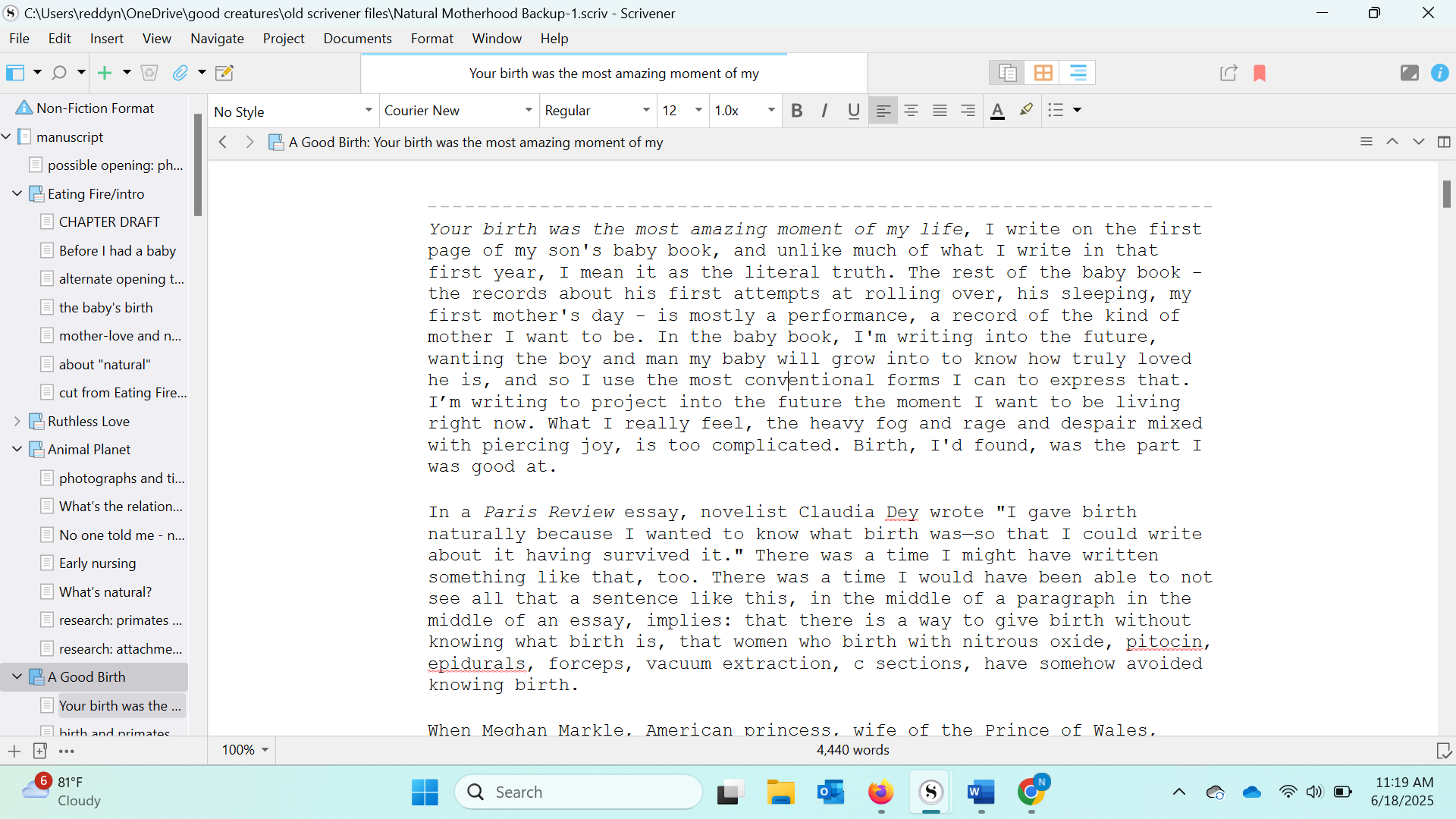
Below, you’ll see a slightly cleaned-up version of that original project, after I’d started trying to sort those scraps into chapters, which you can see as folders on the left. You’ll see that the text going down the left includes both scenes (“the baby’s birth,” “early nursing”), questions and ideas (“about ‘natural,’” “what’s natural?”), and notes from research (research: primates, research: attachment).
✍️ how to try it out
Start a Scrivener project and get to work. Anything you think might go in the project goes into a section. When you switch topics, start a new one.
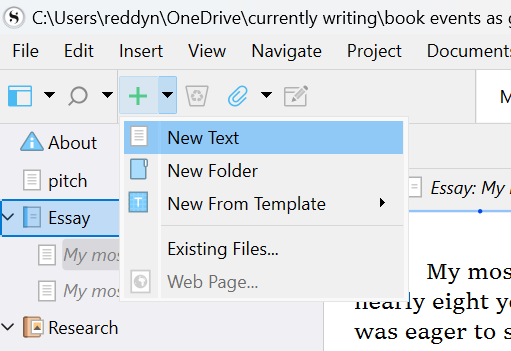
There’s nothing fancy about this—you could do the same thing in a series of word docs—but Scrivener has two distinct advantages: 1) you can search within the project, something that’s much harder to do when you’ve got a dozen word docs and 2) you can easily rearrange the pieces just by moving them up and down on the left.
2. collect and analyze research and reporting
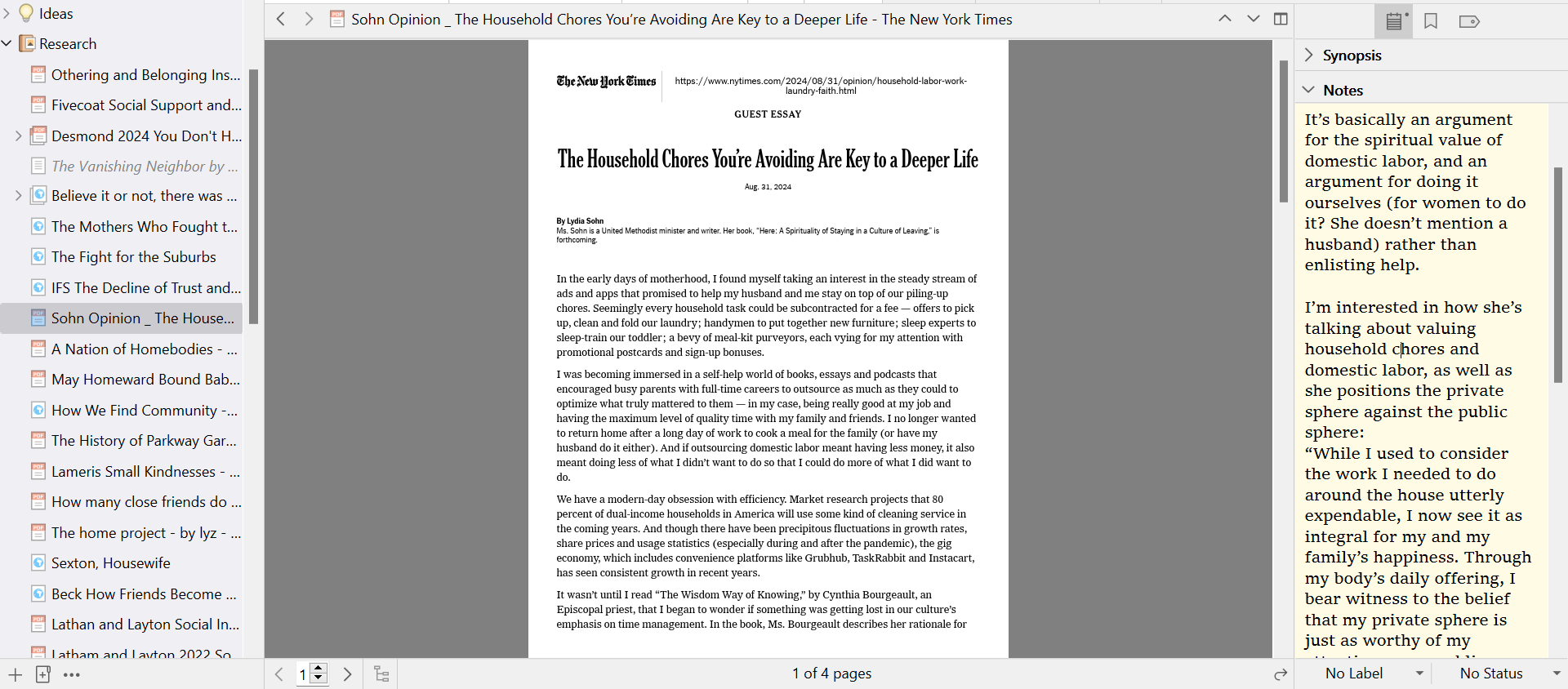
I’m getting started (slowly, slowly) on a new book project now, and I’m using Scrivener to collect anything I think might be helpful or relevant, from research to notes toward a draft. One thing I’m doing differently this time is actually loading all that research into a Scrivener project, instead of just keeping pdfs in a folder and trying to somehow keep track of links for online articles. When I’m organized, I’m also using the note and synopsis function to make notes about what I think I might use the source for, quotes or ideas I think are important, what other questions it raises, and so on.
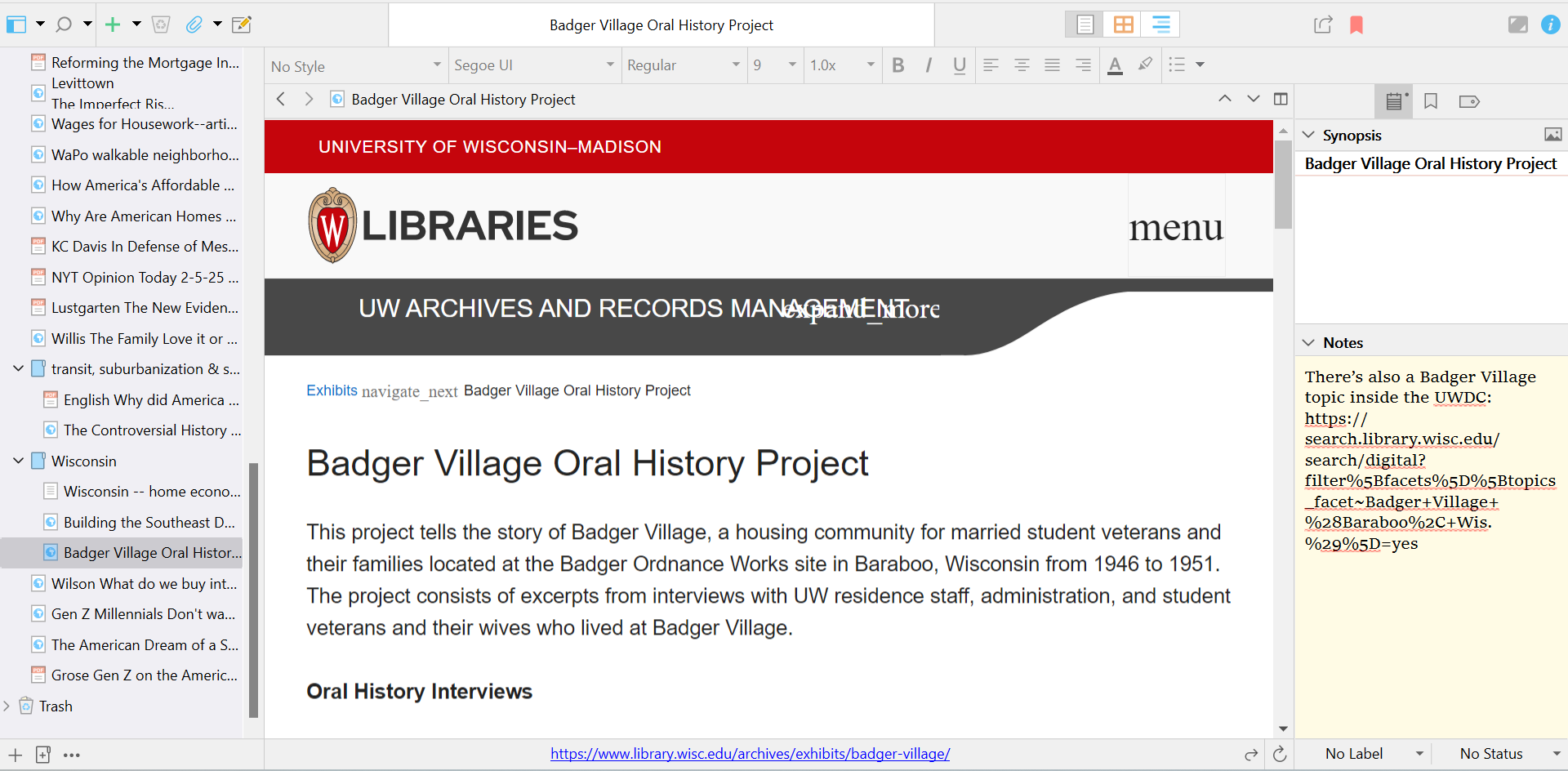
One note: the website upload doesn’t always work for me, for technical reasons I don’t understand. When Scrivener won’t let me upload an online document, I make a pdf, then upload the pdf and also save the URL. It’s clunky, but it’s a failsafe against things on the internet disappearing.
✍️ how to try it out
When you come across articles, images, etc you think might be useful for your writing, pop them into your Scrivener project. It’s a great favor to Future You if you make a note about *why* you picked that article and what you think is useful. You can save yourself hours of wracking your brain for the interesting thing you read . . . somewhere . . . if you keep it now.
3. use the split screen to revise
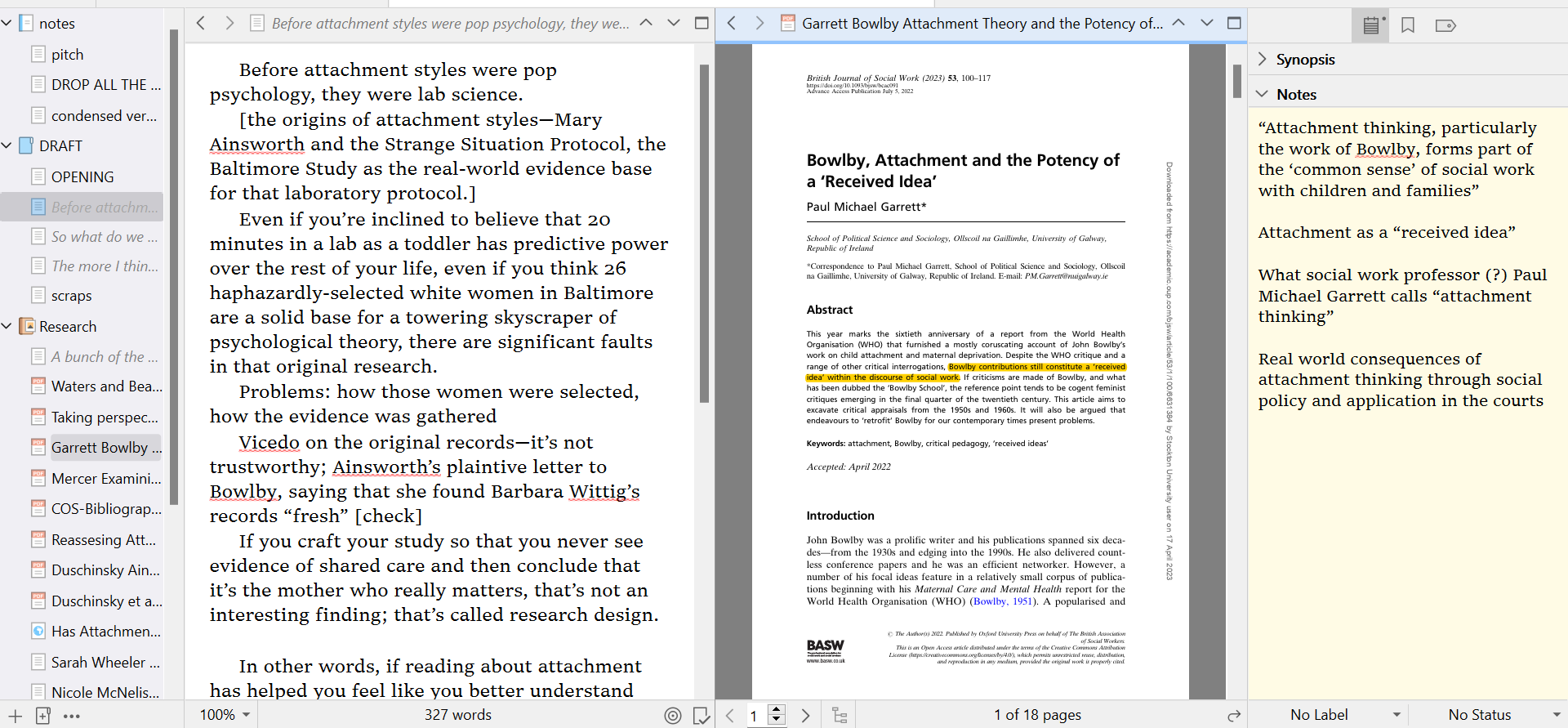
One snazzy feature of Scrivener is the toggle split, which allows you to see two documents at the same time.
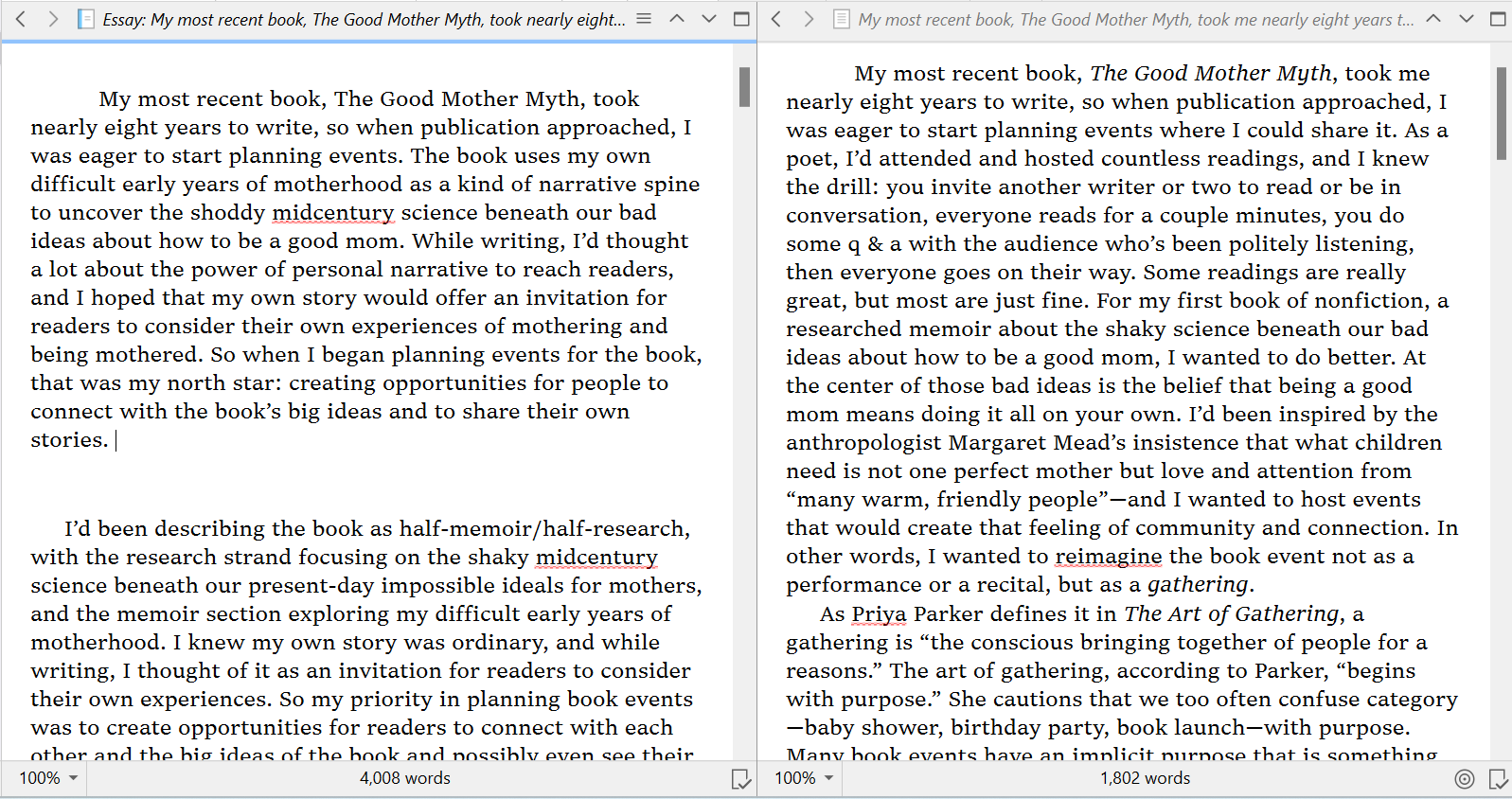
I’ve found the toggle split useful for revision, particularly when I’m trying to move from a messy draft to a more polished one. That’s a stage at which I often print out a draft and retype it, but I started playing around recently with doing this in Scrivener and found it really helpful. Here, the messy draft is on the left and the more polished one is on the right.
You can also use the split screen when you’re writing from research. It’s a great way to be able to see a document, and your notes about it, at the same time as you’re writing.
✍️ how to try it out
If you’ve gotten to a place where you’re ready to polish up a draft, or you need to move from disorganized notes into something a little more intelligible, drop that wild draft into a Scrivener doc, then use the toggle split and open a clean text to it. Or, if you’re writing from research, open your draft and then toggle to see the article or interview transcript as you’re writing.
❤️️ if this post is helpful, clicking the red heart at the top or bottom can help other writers find it!❤️️
4. organize a poetry manuscript
One great thing about a poetry manuscript is that a decent-sized wall can contain the whole thing once it’s printed out. There’s really nothing like seeing the whole thing in one space to figure out what you have, what’s missing, where you’ve accidentally fallen in love with couplets or overused words.
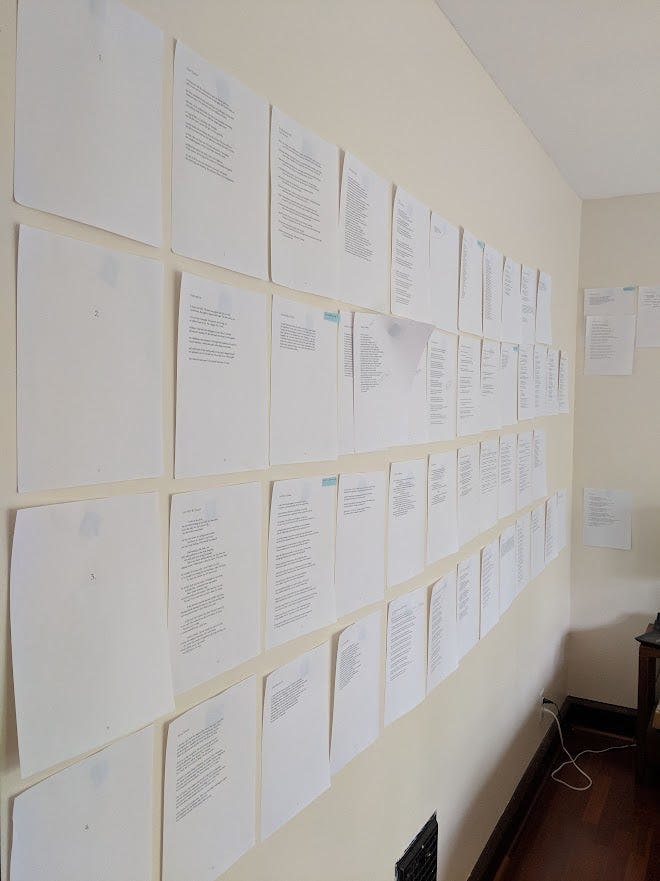
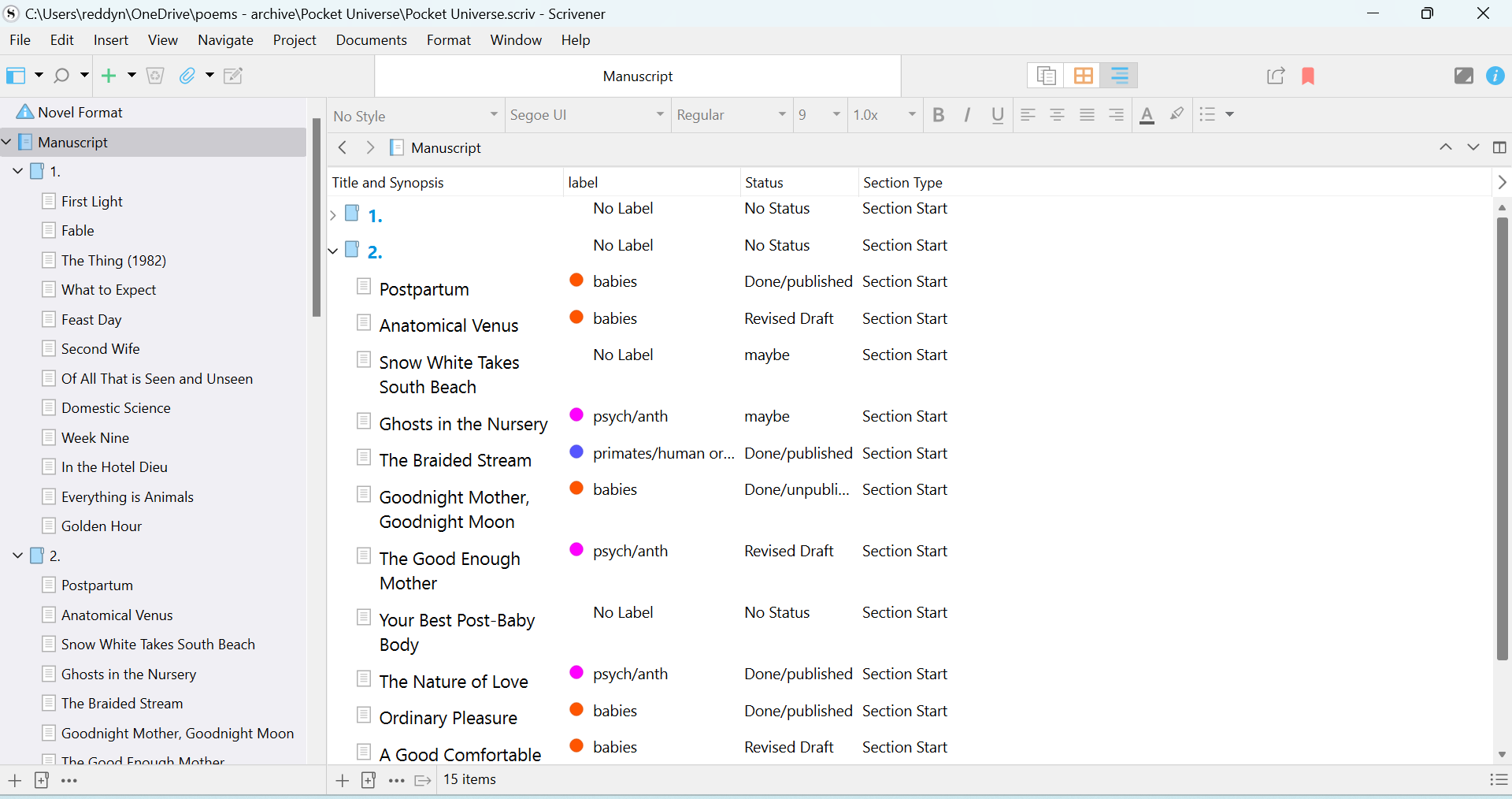
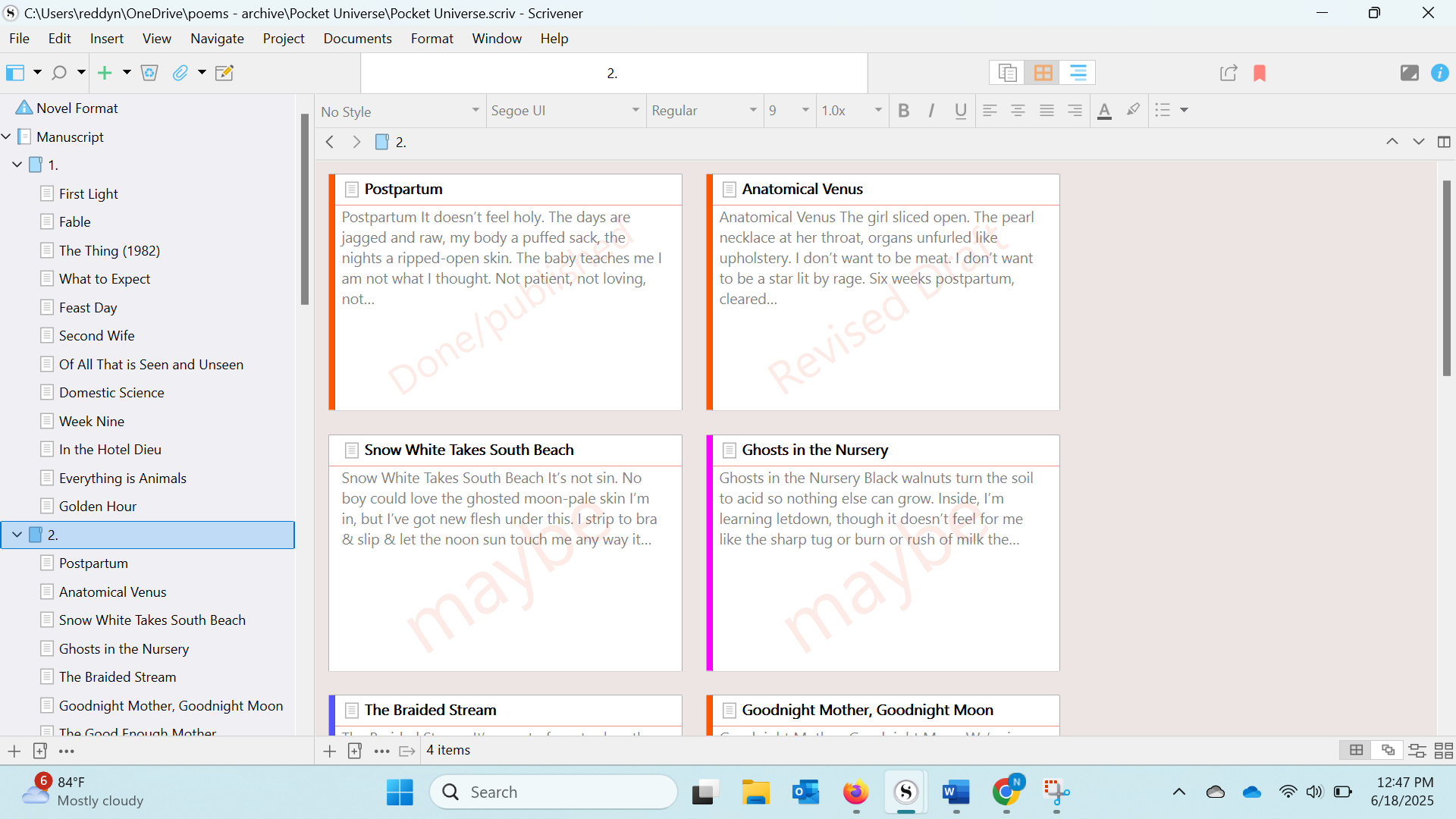
But I’ve found Scrivener useful for poetry manuscripts in two specific ways: analyzing what’s in a manuscript and rearranging. I haven’t used Scrivener to actually write poems, but once I had a bunch of poems ready for Pocket Universe, my most recent collection of poetry, I dropped them all into a Scrivener project used the labels and color-coding to see patterns in what I’d written about and how I’d arranged it.
✍️ how to try it out
I think this is most helpful once you’ve got a pretty good mass of poems going—maybe 12 or more, since you can start to see the shape of a larger collection. Drop those poems into your Scrivener project, then spend some time color-coding in whatever way makes sense for your project. I was primarily focused on theme/content here, but you could also think about form, tone/mood, or something else. From there, you can see where you’ve clumped themes and think about how to distribute them. One advantage of Scrivener over a big word doc is that you can easily adjust order by just moving documents up and down on the left, instead of copying and pasting.
If you’re interested in more tips for arranging a poetry manuscript, I wrote about it for Poets & Writers.
bonus: reduce writing anxiety by tackling short snippets
I still use Word about as often as Scrivener, but I’ve found that if I’m really feeling stuck or anxious in a Word doc, switching platforms can help. A blank Word doc can feel overwhelming and high-pressure, and a draft full of the wrong words in the wrong spot can be a lot to wrangle.
If I’ve gotten to a point where I can see the different sections of an article or an essay—as in, the opening should do x, then I need a section where I define y, then I bring in z expert to explain, etc—breaking that out into different sections in Scrivener helps. Suddenly, I’m not Writing my Article, with all the pressure that brings, but just typing a couple paragraphs with a specific goal in mind. It’s a silly trick, but it works.
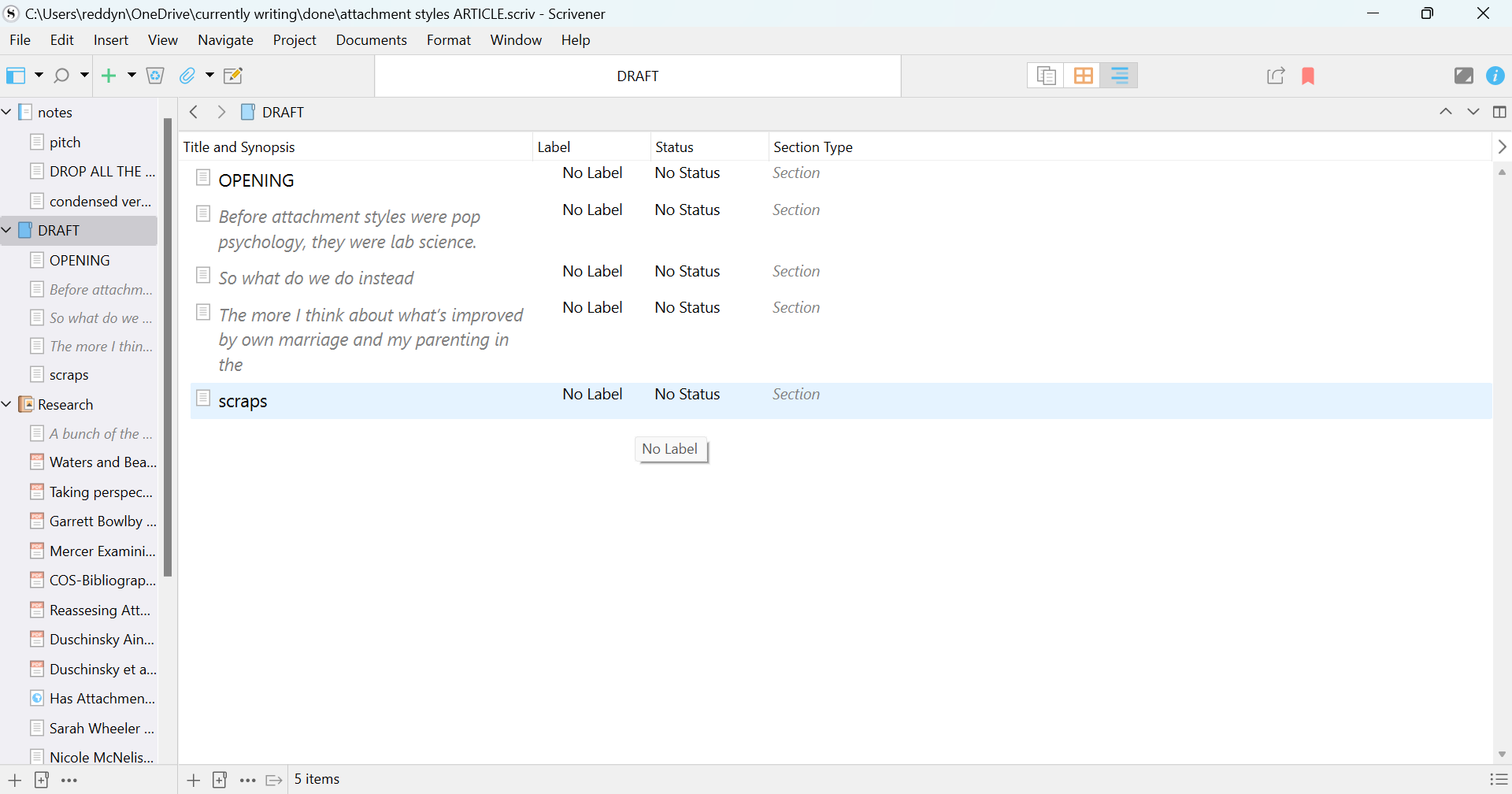
This could also work at earlier stages in a project. If you’re getting started with something new and can’t see the whole thing yet, you can still type a bit into one section—a scene, an important idea, a memory, an argument—and then move on to a new section.
🍵let’s chat: how are you using Scrivener?
I’d love to know: if you’re a Scrivener user, what works well for you? And if you haven’t used Scrivener, is there anything here that seems useful for you? What questions do you have?
Write More, Be Less Careful is a newsletter about why writing is hard & how to do it anyway. I’m so glad you’re here.
If Write More has helped you in your creative life, you can support me by sharing it online or with a friend, or by ordering my new book, The Good Mother Myth.

I'm trying Scrivener for the first time for a different kind of book project, so I can't compare it to past books, but I'm liking it and still doing mostly intuitive things. But a feature I love is project targets where I can set goals for a word count for early drafts, and I find that even though I don't know the structure of the book yet, telling myself I have "chapters" makes me feel like I can move things around later. This post is so helpful--thanks!
Scrivener was a game changer for me. When I was writing my first book I would spend so much time trying to find things and I felt that I had to write in order. Scrivener let me dart around and write in 10 minutes bursts then make sense of it all later.